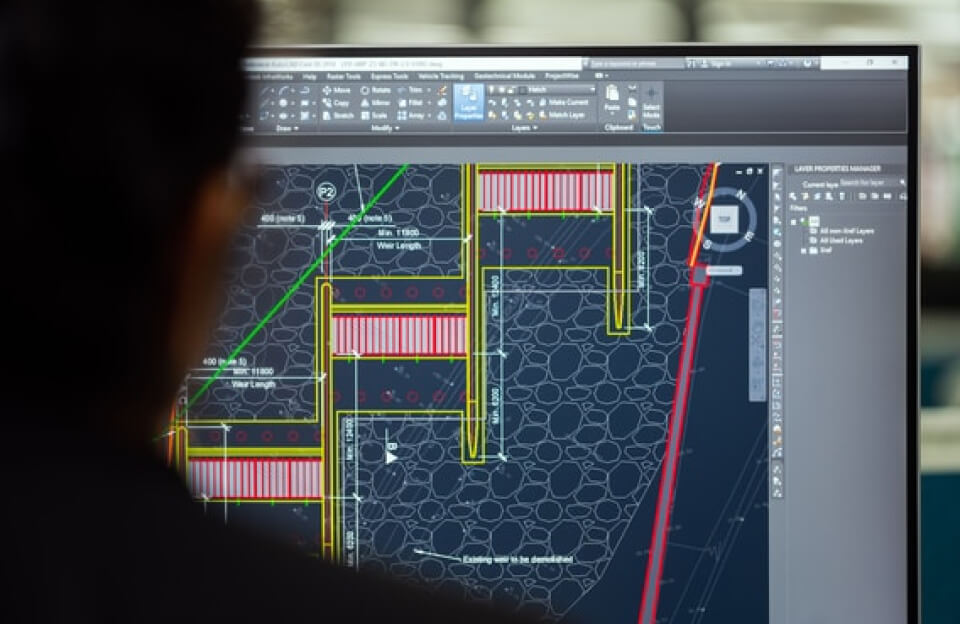
If you’ve ever worked on CAD software AutoCAD, SolidWorks, Fusion 360, or any of their cousins you already know this truth: time disappears fast on the drawing board. A few clicks here, a zoom there, and suddenly your coffee is cold and the deadline is uncomfortably close.
That’s where shortcuts come in. Not the “cut corners” kind the keyboard shortcut kind. Once you start using them, life on CAD changes for the better.
Why Shortcuts Matter in CAD Life?
CAD work is all about precision and repetition. Drawing lines, trimming edges, switching views, snapping points it’s the same actions, again and again. Using menus for every single command is like driving in first gear on a highway.
Shortcuts help you:
- Work faster without sacrificing accuracy
- Stay in the design flow (less mouse-hunting, more creating)
- Reduce fatigue from constant clicking
- Meet tight deadlines with less stress
In short, shortcuts don’t just save seconds they save mental energy.
The Most Common CAD Shortcuts You Should Know
While shortcuts vary slightly between CAD programs, many core commands are universal or easily customizable.
Here are some classics that CAD users swear by:
- L – Line
- C – Circle
- R – Rectangle
- M – Move
- CO – Copy
- TR – Trim
- EX – Extend
- Z – Zoom
- Ctrl + Z – Undo (your best friend)
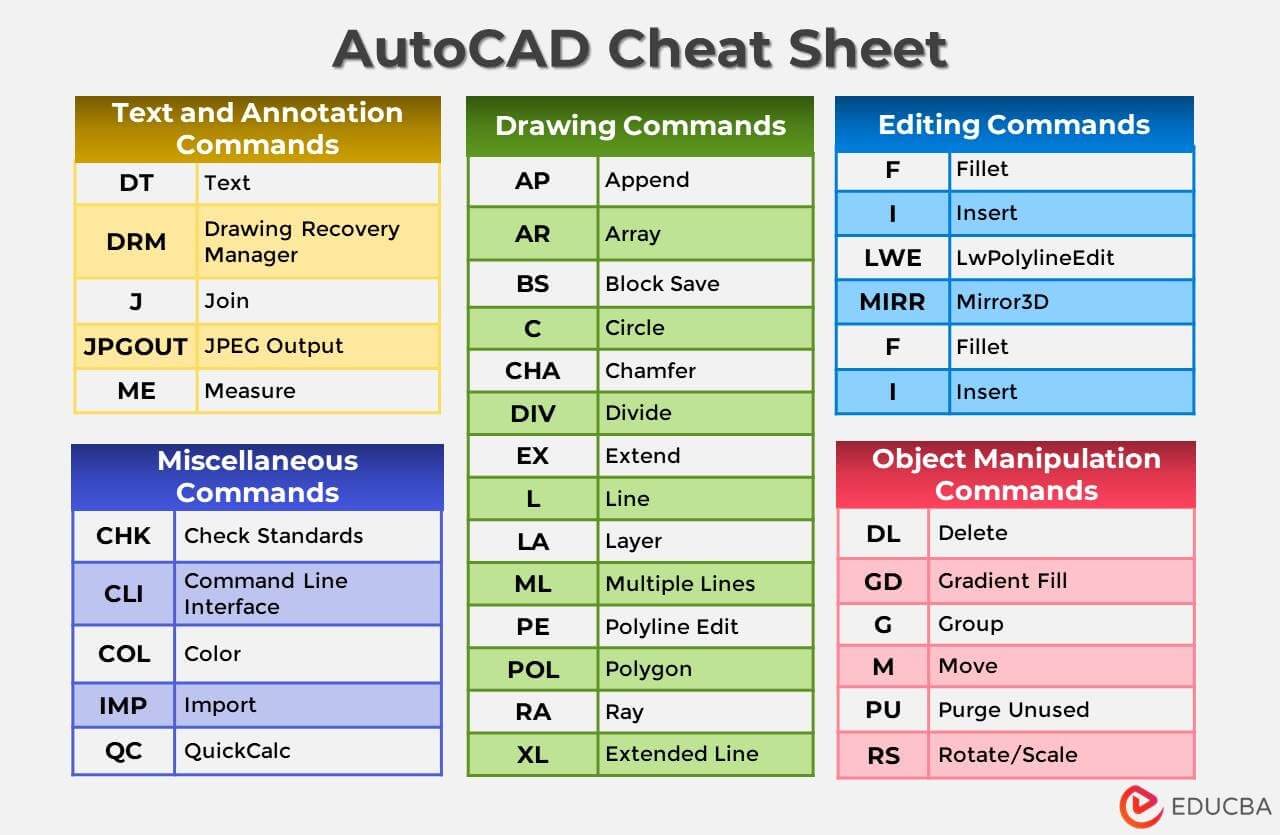
Once these become muscle memory, your workflow feels smoother almost overnight.
Custom Shortcuts: Your CAD, Your Rules
One of the most underrated features in CAD software is custom shortcut creation. If there’s a command you use 50 times a day, why not assign it a single key?
Power users often:
- Shorten long commands into one-letter aliases
- Customize shortcuts to match their thinking style
- Create different shortcut sets for drafting, modeling, or detailing
Think of it like setting up your own personal CAD cockpit.
Shortcuts = Better Design Thinking
Here’s the unexpected bonus: shortcuts don’t just make you faster they make you think better.
When you’re not distracted by menus and toolbars, your brain stays focused on:
- Geometry
- Constraints
- Design intent
- Problem-solving
The software fades into the background, and the design takes center stage. That’s when CAD stops feeling like a tool and starts feeling like an extension of your hands.
Building the Shortcut Habit
Learning shortcuts can feel awkward at first. You’ll forget them, mistype them, or instinctively reach for the mouse. That’s normal.
Try this:
- Learn 3–5 shortcuts per week
- Force yourself to use them, even if it’s slower at first
- Keep a small cheat sheet near your screen
Within a month, you’ll wonder how you ever worked without them.
Final Thoughts: Shortcut Your Way to CAD Mastery
Life on CAD isn’t just about knowing commands it’s about knowing them efficiently. Shortcuts are the quiet superpower of great designers and drafters. They don’t show up in the final drawing, but they shape how fast, clean, and confidently that drawing was made.
So the next time you open your CAD software, don’t just draw shortcut your way through it.
Read Related Blogs
Watching Their Dust: Photographing Players in Pollination
Scientists Fear Climate Data Gap as Trump Aims at Satellites