Have you ever found yourself needing both macOS and Windows on a single machine? Maybe you’re a developer who needs to test applications across platforms, a creative professional who relies on macOS for design work but needs Windows for specific software, or simply someone who wants the best of both worlds. The good news is that running both operating systems on the same computer is not only possible, it’s also actually quite practical once you know your options.
Table of Contents
Understanding Your Options
There are several ways to run macOS and Windows 10 on the same computer, and the right choice depends on your specific hardware and needs.
Option 1: Boot Camp on a Mac
If you own a Mac, Boot Camp is Apple’s official solution for running Windows natively. This built-in utility allows you to partition your hard drive and install Windows alongside macOS. When you start your computer, you choose which operating system to boot into.
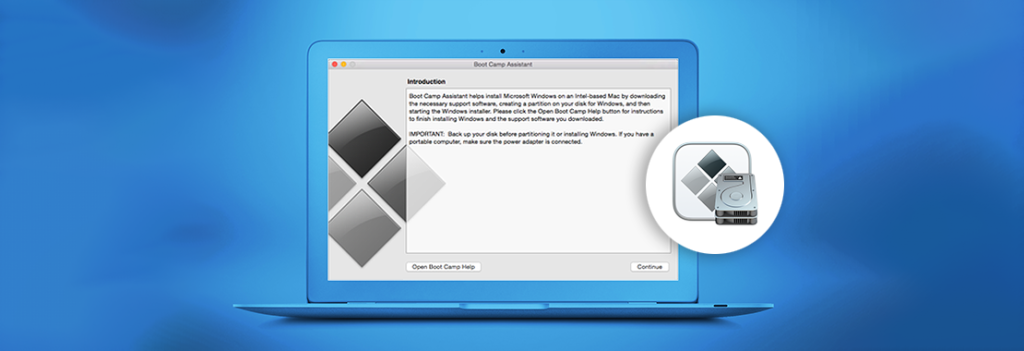
The main advantage of Boot Camp is performance. Since Windows runs directly on the hardware without any virtualization overhead, you get full access to your Mac’s processing power, graphics card, and RAM. This makes Boot Camp ideal for gaming, resource-intensive applications, or any task where you need maximum performance from Windows.
However, there’s a significant drawback: you can only use one operating system at a time. Switching between macOS and Windows requires a full restart, which can be inconvenient if you frequently need to move between the two environments.
Important note: Boot Camp is only available on Intel-based Macs. Apple’s newer M1, M2, M3, and M4 Macs with Apple Silicon chips don’t support Boot Camp, so you’ll need to explore virtualization options instead.
Option 2: Virtualization Software
Virtualization allows you to run Windows as a “guest” operating system inside macOS (or vice versa). Popular virtualization solutions include Parallels Desktop, VMware Fusion, and VirtualBox. With this approach, you can run both operating systems simultaneously, switching between them with a simple click or keyboard shortcut.
The convenience factor here is tremendous. You can copy and paste between operating systems, share files seamlessly, and even run Windows applications in a window alongside your macOS apps. For many users, this flexibility outweighs the performance trade-off.
The downside is that virtualization consumes more resources, as you’re essentially running two operating systems simultaneously. Your computer needs sufficient RAM (16GB is a comfortable minimum for smooth performance) and processor power to handle both systems. Graphics-intensive tasks or gaming may not perform as well in a virtual machine compared to a native Boot Camp installation.
Option 3: Hackintosh (Running macOS on PC Hardware)
On the flip side, if you have a Windows PC and want to add macOS, you might consider building a “Hackintosh,” a non-Apple computer running macOS. This involves carefully selecting compatible hardware and using bootloaders like OpenCore to install macOS on your PC.
I should be upfront: this option exists in a legal gray area and violates Apple’s end-user license agreement, which states that macOS should only be installed on Apple-branded hardware. Beyond the legal concerns, Hackintosh builds require significant technical knowledge, can be unstable, and may break with macOS updates. You’ll also miss out on features like iMessage and FaceTime, which often don’t work properly on Hackintosh systems.
For most people, I’d recommend sticking with official solutions rather than going down the Hackintosh route.
Choosing the Right Approach
So which method should you choose? Consider these factors:
Choose Boot Camp if
You need maximum performance from Windows, especially for gaming or professional applications like CAD software or video editing. You don’t mind restarting your computer to switch operating systems, and you have an Intel-based Mac.
Choose Virtualization if
You need to switch between macOS and Windows frequently throughout the day. Your work involves lighter Windows applications that don’t require full hardware access. You have sufficient RAM and processor power to run both systems simultaneously. You value convenience over maximum performance.
Consider your hardware
Apple Silicon Mac owners don’t have the Boot Camp option, so virtualization with Parallels Desktop (which supports Windows 11 on ARM) becomes the primary solution. Windows PC owners who want macOS should honestly consider just buying a Mac rather than attempting a Hackintosh build.
Practical Tips for Dual-Booting Success
Regardless of which method you choose, here are some tips to make your dual-OS setup work smoothly:
First, allocate enough storage. Both operating systems need room to breathe, along with space for applications and files. I’d recommend at least 100GB for your Windows partition if using Boot Camp, and similar storage for virtual machines.
Second, invest in enough RAM. For virtualization, 16GB of total system memory is the minimum I’d recommend, with 32GB being ideal if you run demanding applications in both environments.
Third, keep both systems updated and backed up separately. Your macOS Time Machine backup won’t protect your Windows installation, so use Windows Backup or a third-party solution for your Windows partition or virtual machine.
Finally, be mindful of licensing. You’ll need a legitimate Windows license whether you’re using Boot Camp or virtualization. Some virtualization software bundles Windows licenses, but Boot Camp requires you to purchase Windows separately.
The Bottom Line
Running macOS and Windows on the same computer opens up tremendous flexibility, allowing you to access the best applications and features from both ecosystems. Whether you choose the performance of Boot Camp, the convenience of virtualization, or explore other options, having both operating systems at your fingertips can genuinely enhance your productivity and eliminate the need for multiple computers.
The technology has matured to the point where dual-OS setups are reliable and relatively straightforward to implement. Take some time to assess your specific needs, hardware limitations, and budget, and you’ll find a solution that works perfectly for your situation.